Speaking practice and the microphone

Turn speech practice on, help your child use the microphone, and fix the most common tablet problems.

  1. Step 1

    Turn it on for your child

    Speech practice is off until you turn it on. Open your child's Settings from the dashboard and choose Turn speech practice on.

    On a computer
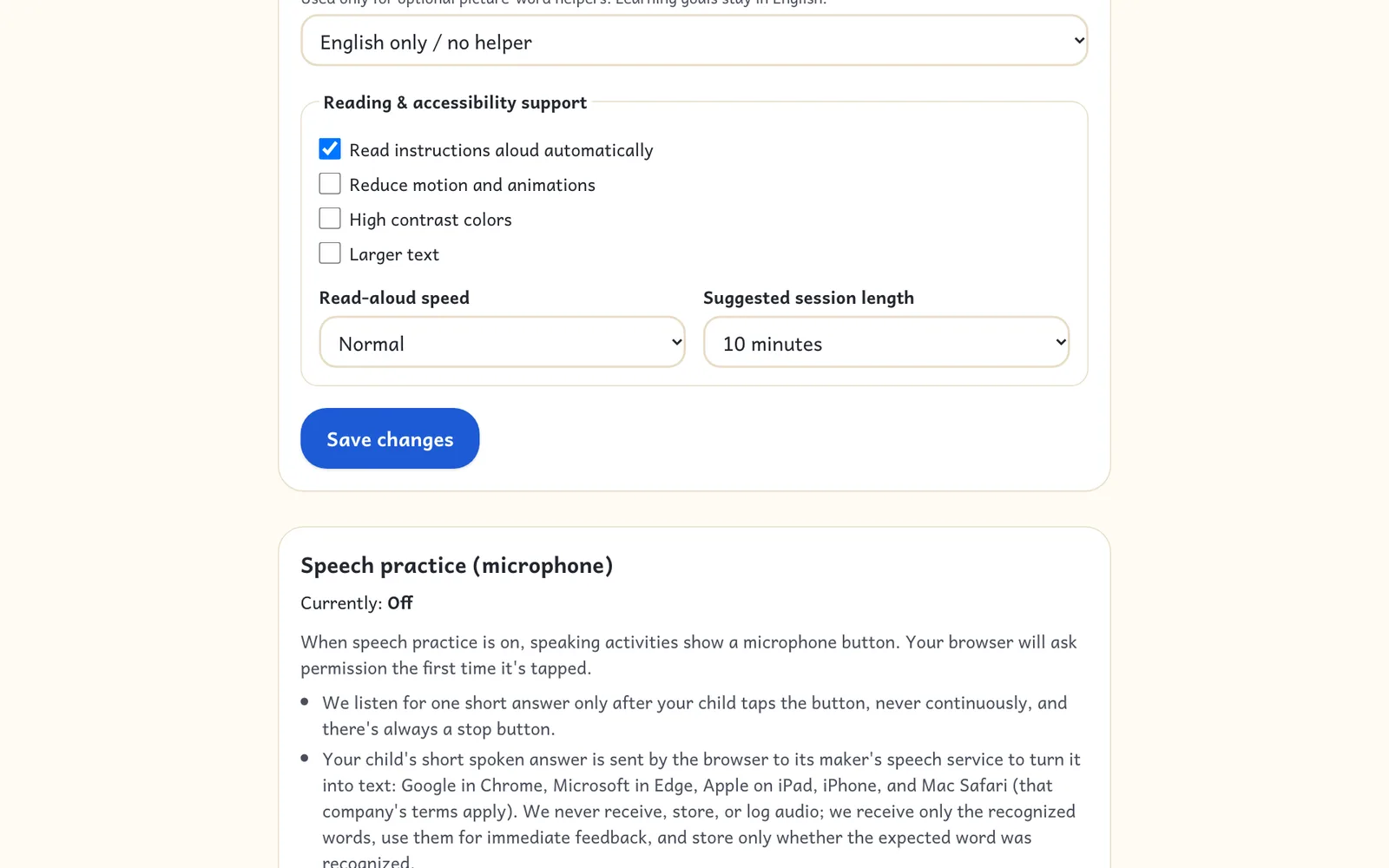
    A child's settings page with the speech practice section.
  2. Step 2

    Listen, then say it

    In speaking activities, your child taps Listen, then taps the microphone and says the word. Listening stops by itself after a few seconds. Tap instead always works too.

    On a tablet
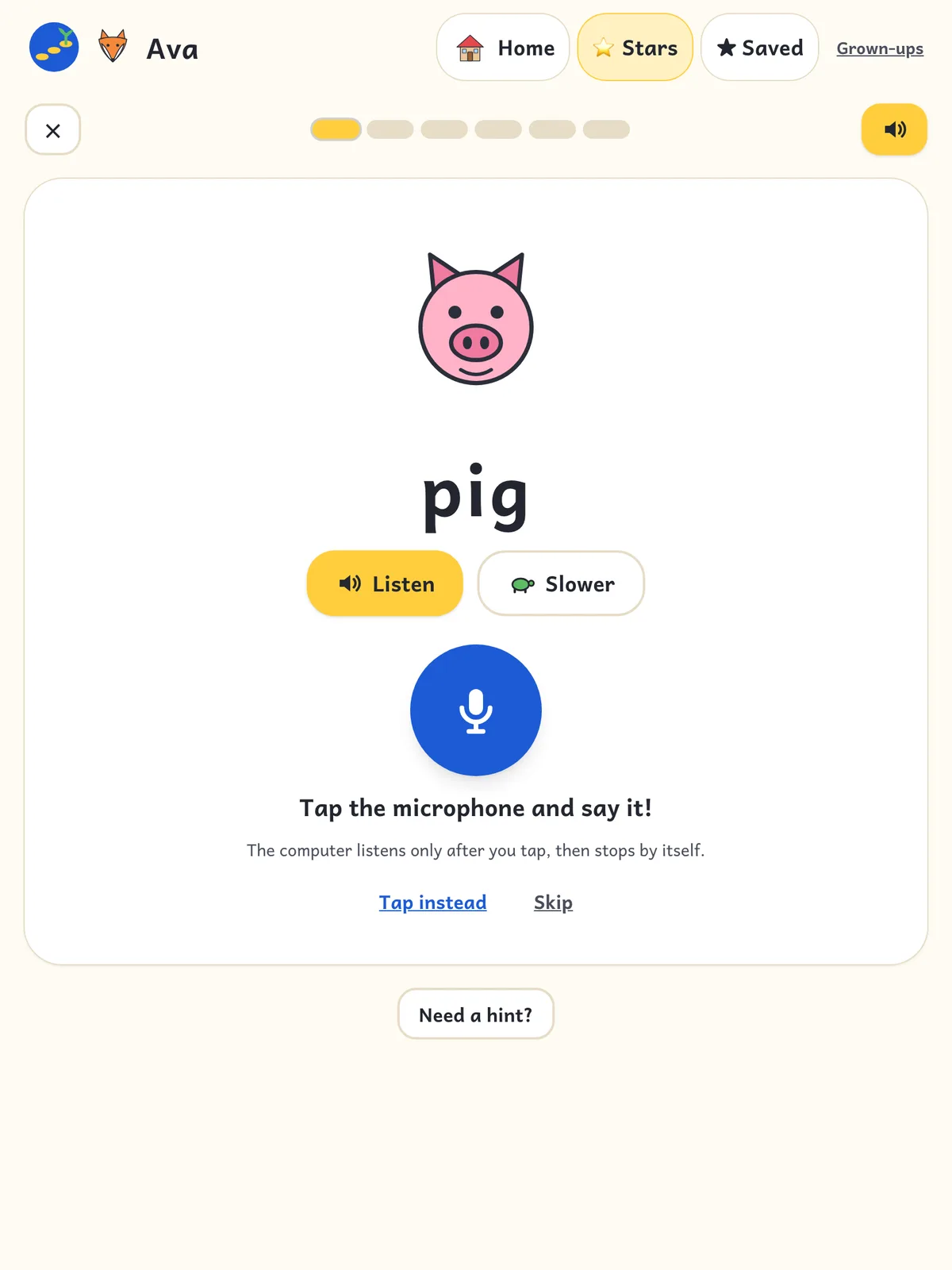
    A speaking activity with Listen, Slower, and microphone buttons.

iPad (Safari or Chrome)

  • Tap Allow when the iPad asks to use the microphone.
  • If it never seems to listen, turn on dictation: Settings → General → Keyboard → Enable Dictation. iPad speech recognition uses Apple's dictation service.
  • Check Settings → Safari → Microphone is set to Ask or Allow.
  • Wait for the red microphone, then speak clearly and close to the iPad. A quiet room helps a lot.

Amazon Fire tablets

  • The Silk browser on Fire tablets doesn't include speech recognition, so speaking activities show picture or sentence choices to tap instead. Read-aloud still works.

Computers and Chromebooks

  • Chrome and Edge support speaking practice. Firefox doesn't yet, so it shows tap choices.
  • Allow the microphone when the browser asks. If you clicked Block by mistake, click the lock icon next to the address and allow the microphone.

Still not hearing your child?

  • After a few tries, activities switch to tapping automatically, so your child is never stuck.
  • Speech recognition can struggle with young voices and background noise. It's practice, not a test: tapping counts too.
Speaking practice and the microphone · Little Step Learnings